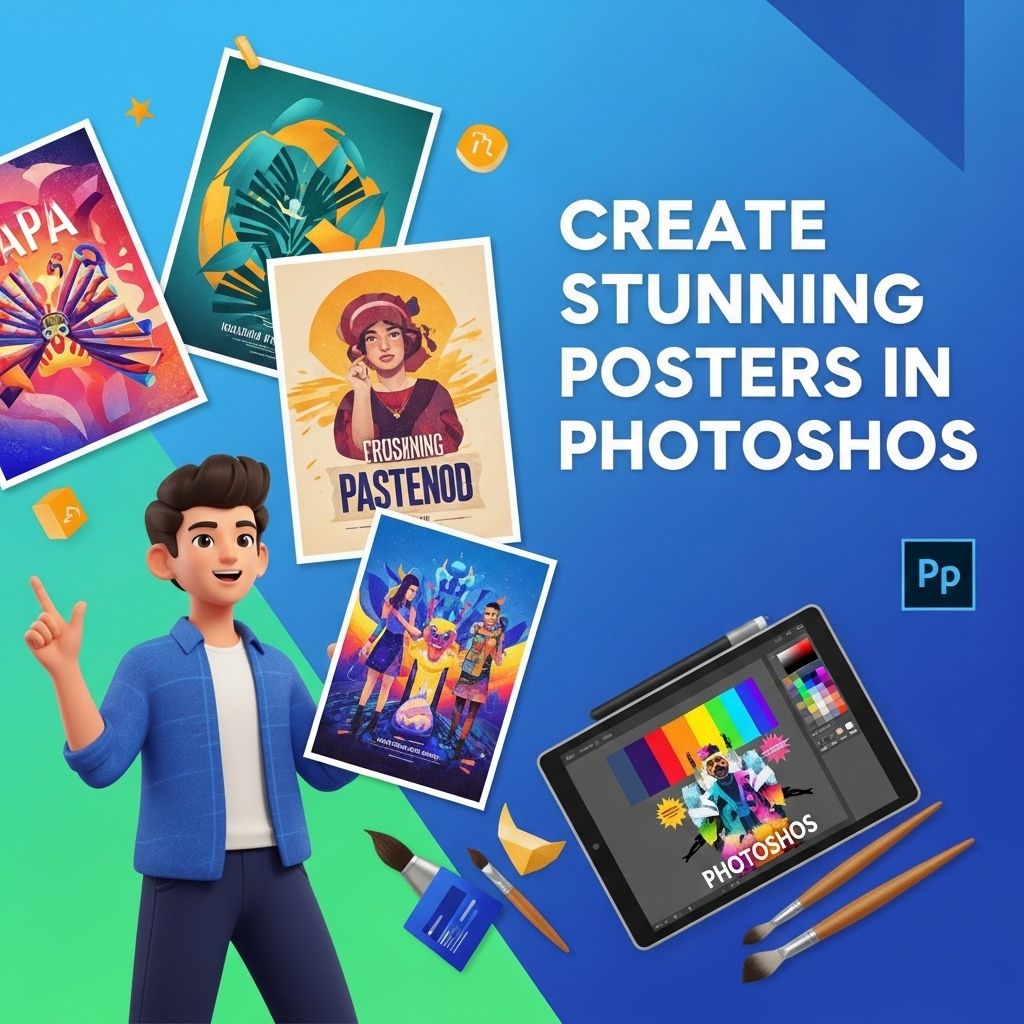
Creating stunning posters is an art that combines creativity, design principles, and technical skills. With Adobe Photoshop, designers have a powerful tool at their disposal that allows them to manipulate images, text, and colors to produce eye-catching visuals. In this article, we will explore the key techniques and tips for designing exceptional posters using Photoshop.
Creating stunning posters in Photoshop can be both an exciting and rewarding endeavor. This step-by-step guide will walk you through the essential techniques and tools needed to design eye-catching posters that effectively communicate your message. For additional inspiration and templates, check out these poster design resources.
Table of Contents
Understanding the Basics of Poster Design
Before diving into Photoshop specifics, it’s essential to grasp the fundamental principles of poster design. A well-designed poster is not just visually appealing but also communicates its message effectively. Here are some basic concepts to consider:
1. Layout and Composition
- Balance: Ensure your design is balanced with visual elements distributed evenly.
- Hierarchy: Establish a clear visual hierarchy to guide the viewer’s eye.
- Space: Use negative space effectively to prevent clutter.
2. Color Theory
Colors can evoke emotions and convey messages. Understanding color theory is crucial for poster design. Here are some color combinations that work well together:
| Color Combination | Effect |
|---|---|
| Complementary Colors | Create contrast |
| Analogous Colors | Create harmony |
| Triadic Colors | Provide vibrancy |
Setting Up Your Photoshop Document
Once you have a concept in mind, it’s time to set up your document in Photoshop. Follow these steps:
- Open Photoshop: Launch the application and select File > New.
- Choose Dimensions: For posters, a common size is 24×36 inches. Set the resolution to at least 300 DPI for print quality.
- Set Background: Choose a solid color or gradient as your background layer.
Utilizing Photoshop Features
Photoshop is filled with features that can enhance your poster design:
1. Text Tools
Typography is a crucial element in poster design. Here are tips to create compelling text:
- Select Fonts Wisely: Choose fonts that align with the theme of your poster.
- Text Layer Styles: Use layer styles like stroke, shadow, and glow to make your text pop.
2. Image Manipulation
Incorporating images can elevate your poster. Consider the following techniques:
- Layer Masks: Use layer masks to blend images seamlessly.
- Adjustment Layers: Adjust brightness, contrast, and color balance to enhance visuals.
Adding Effects and Finishing Touches
Once your layout is complete, you can add effects to make your poster stand out:
1. Filter Effects
Photoshop offers a variety of filters to apply unique effects:
- Blur Effects: Use Gaussian Blur for background images.
- Texture Filters: Add grain or texture for a tactile feel.
2. Final Adjustments
Before saving your design, consider these final adjustments:
- Proofread Text: Ensure all text is free of errors.
- Check Alignment: Verify that elements are aligned properly.
- Export Settings: Save your file in the appropriate format for printing, such as TIFF or PDF.
Common Mistakes to Avoid
Even experienced designers can make mistakes. Here are some common pitfalls to watch out for:
- Overcrowding: Avoid adding too many elements that confuse the viewer.
- Poor Color Choices: Make sure colors complement each other.
- Neglecting Target Audience: Design with your audience in mind to ensure relevance.
Inspiration and Resources
When creating posters, draw inspiration from various sources. Here are some resources to explore:
- Design Websites: Websites like Behance and Dribbble showcase diverse design work.
- Books: Read design books that focus on poster design and layout.
- Tutorials: Online tutorials can provide step-by-step guidance on specific techniques.
Conclusion
With the right tools and knowledge, you can create stunning posters that not only capture attention but also convey your message effectively. By applying the principles of design, utilizing Photoshop’s features, and avoiding common mistakes, you will be well on your way to producing professional-quality posters. So start experimenting, and let your creativity shine!
FAQ
What are the best practices for creating posters in Photoshop?
Some best practices include using high-resolution images, keeping the design simple and focused, utilizing grids for alignment, and ensuring text is legible with contrasting colors.
Can I use templates to create posters in Photoshop?
Yes, using templates can save time and provide a professional look. Photoshop offers various templates that you can customize for your needs.
What dimensions should I use for a poster in Photoshop?
Common poster sizes include 24×36 inches for large posters or 18×24 inches for smaller ones. Always set the resolution to 300 DPI for print quality.
How can I add text effects to my poster in Photoshop?
You can add text effects using layer styles, such as drop shadows, strokes, and gradients, or by applying custom filters to enhance the typography.
Is it possible to print my poster directly from Photoshop?
Yes, you can print directly from Photoshop by selecting ‘Print’ from the File menu, but ensure your printer settings match your poster’s dimensions and resolution.
What file format should I save my poster in for printing?
For printing, it’s best to save your poster as a TIFF or high-quality PDF to maintain image quality and color accuracy.