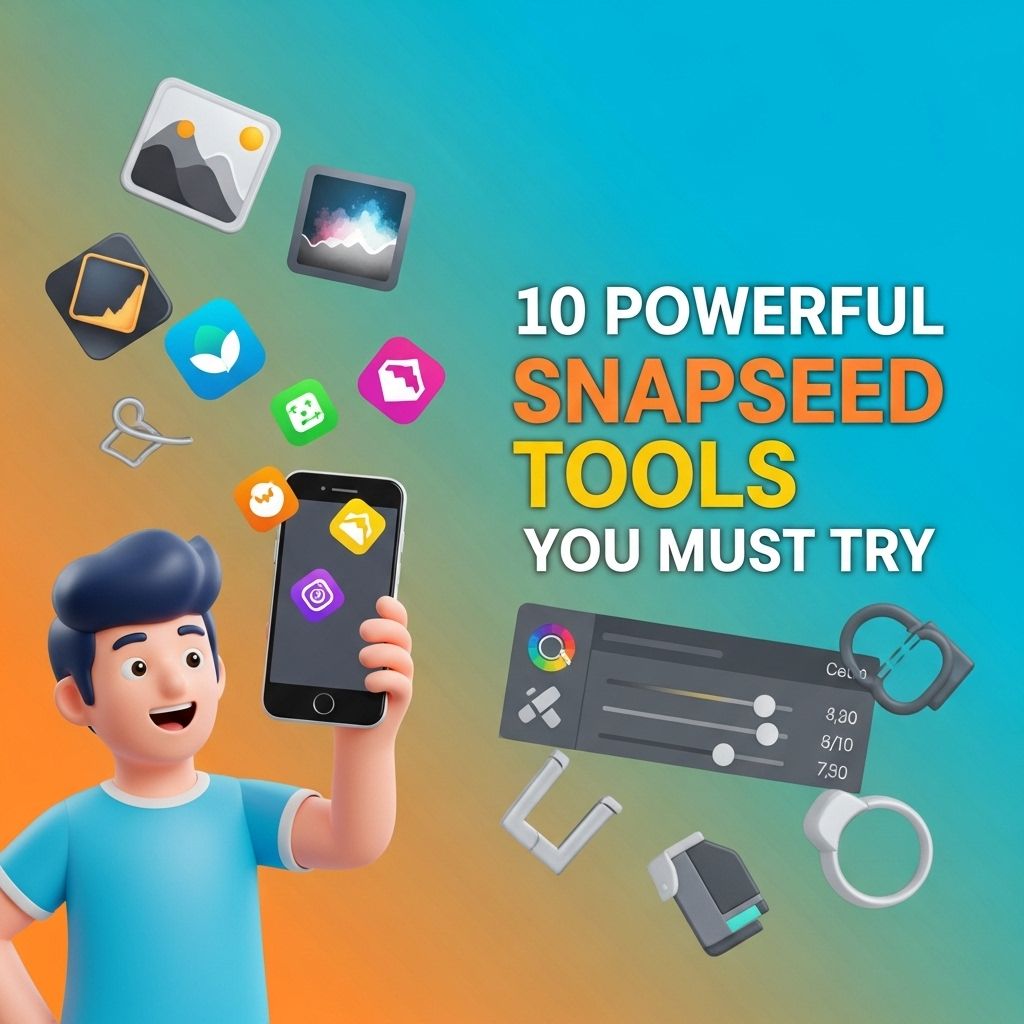
In the world of mobile photography, editing apps have become indispensable tools for transforming ordinary shots into stunning visual masterpieces. One such powerful tool is Snapseed, developed by Google. With its range of features and user-friendly interface, Snapseed allows both amateurs and seasoned photographers to enhance their images seamlessly. Whether you want to fine-tune your photos or create dramatic effects, this article will explore ten powerful Snapseed tools that can elevate your photography game.
Table of Contents
1. Tune Image
The Tune Image tool is essential for making adjustments to the overall look of your photograph. It allows users to modify several attributes, including:
- Brightness: Adjusts the overall lightness of the image.
- Contrast: Enhances the difference between light and dark areas.
- Saturation: Increases or decreases the intensity of colors.
- Ambiance: A unique feature that adjusts brightness and contrast simultaneously to enhance the photo’s vibrancy.
- Highlights and Shadows: Fine-tune the bright and dark areas to bring out details lost in extreme lights or shadows.
To access Tune Image, simply open your desired photo and select it from the tools menu. With a few adjustments, you can significantly improve your image quality.
2. Details
The Details tool is fantastic for enhancing texture and clarity in your images. It includes:
- Structure: This enhances the details in your photo without increasing noise, making it great for landscape and architectural shots.
- Sharpening: Increases the sharpness of the image, perfect for adding clarity to blurred photos.
Utilize this tool sparingly, as overusing it can lead to unnatural-looking results. Strive for a balance that enhances your images while maintaining authenticity.
3. Crop and Rotate
If you’re looking to improve composition, the Crop and Rotate tool is vital. It allows you to:
- Crop: Remove unwanted portions of the image to focus on the subject.
- Rotate: Adjust the angle of your photo for better alignment.
- Aspect Ratios: Snapseed provides various preset ratios (e.g., 1:1, 16:9) for easy cropping.
Good composition can make or break a photograph, so take your time with this tool to get it just right.
4. Healing
Unwanted spots or blemishes can detract from an otherwise perfect shot. The Healing tool is designed to:
- Remove: Small imperfections like scratches, spots, or distracting elements in the background.
- Blend: Seamlessly blend the edited area with its surroundings to maintain a natural look.
To use the Healing tool, simply select it and brush over the area you want to fix. With precise movements, you can erase distractions and enhance your overall image.
5. Brush
The Brush tool enables targeted adjustments to specific areas of your image. It includes options to:
- Lighten: Brighten specific parts of the image.
- Darken: Decrease brightness in chosen areas.
- Saturation: Adjust colors in specific regions.
- Temperature: Modify the warmth or coolness in targeted spots.
This tool provides a level of control that allows for creative and customized edits, making it a favorite among photographers looking to create unique effects.
6. Filters and Styles
Snapseed offers a variety of filters to add artistic flair to your images. Some popular categories include:
Vintage
Add a retro feel with textures and color adjustments.
Drama
Enhance details and create a mood with high contrast.
Black & White
Convert your photos into stunning monochromes with various styles.
Lens Blur
Simulate a shallow depth of field to bring focus to your subject.
Each filter is customizable, allowing you to adjust intensity levels and achieve the desired look. Experiment with different filters to find styles that suit your vision.
7. Text Tool
- Font Choices: A variety of fonts to match your style.
- Color Adjustments: Change the color of your text for better visibility.
- Placement: Move your text anywhere on the image.
This feature is perfect for creating engaging content and can be invaluable for marketers and social media influencers.
8. Double Exposure
For more advanced edits, Snapseed includes a Double Exposure function. This tool enables users to:
- Combine Images: Merge two photos to create unique compositions.
- Blending Modes: Choose from various blending options (e.g., overlay, multiply) to achieve different effects.
This feature is highly creative and can be used to tell a story through imagery or create artistic expressions that stand out.
9. Lens Blur
Simulating the effect of a lens blur can dramatically enhance the visual appeal of your subject. With this tool, you can:
- Add Depth: Create a shallow depth of field effect that emphasizes the main subject.
- Control the Blur: Adjust the strength and transition of the blur for natural looks.
Lens blur works exceptionally well for portraits and close-up shots, drawing attention to your subject while softening the background.
10. Perspective
The Perspective tool can help correct distortions caused by tilt or lens angles. It allows for:
- Vertical and Horizontal Adjustments: Straighten lines to enhance architectural shots.
- Free Control: Adjust the shape of your image to create unique perspectives.
Using this tool effectively can make your photos look more professional and polished, especially in architectural or landscape photography.
Conclusion
Snapseed is an incredibly versatile photo editing tool that caters to both beginners and seasoned professionals. With its range of features, from basic adjustments to advanced editing techniques, anyone can achieve stunning results. By experimenting with these ten powerful tools, you can unlock your creative potential and transform your photographs into captivating artworks. Whether you’re looking to enhance images for social media or simply want to document your life beautifully, Snapseed is a must-have in your editing arsenal.
FAQ
What are the top features of Snapseed?
Snapseed offers a variety of powerful features including selective adjustments, healing tools, and filters that enhance your photos.
How can I use Snapseed for professional photo editing?
You can use Snapseed’s advanced tools like Curves, Perspective, and Text to achieve professional-quality edits on your images.
Is Snapseed suitable for beginners?
Yes, Snapseed is user-friendly and offers intuitive tools that make it easy for beginners to edit photos effectively.
Can I use Snapseed on both iOS and Android?
Yes, Snapseed is available for free on both iOS and Android devices, making it accessible to a wide range of users.
What are the benefits of using Snapseed’s selective editing tools?
Selective editing tools in Snapseed allow you to adjust specific areas of your image without affecting the entire photo, giving you greater control over the final result.
How do I create stunning effects with Snapseed?
You can create stunning effects by experimenting with Snapseed’s filters, double exposure, and blending modes to add creativity to your photos.