Creating professional-quality videos has never been easier, especially with the powerful tools we carry in our pockets. The iPhone, equipped with advanced camera technology and a plethora of editing apps, enables anyone to produce high-definition videos that can rival those shot with expensive equipment. This guide aims to equip you with the necessary techniques to harness the full potential of your iPhone for video production.
Creating stunning videos with your iPhone is easier than ever, thanks to its powerful camera capabilities and user-friendly editing apps. With just a few tips and techniques, you can elevate the quality of your videos and capture breathtaking moments seamlessly. For inspiration and tools, check out this resource for video graphics: tube graphics.
Table of Contents
Understanding Your iPhone Camera
The first step in making professional videos with your iPhone is to familiarize yourself with its camera capabilities. Apple has consistently improved the camera in its devices, making it suitable for high-end videography. Here are some key features:
- Optical Image Stabilization: Helps eliminate shaky footage.
- 4K Video Recording: Available in various frame rates for high-resolution output.
- Slow Motion and Time-Lapse: Captures dynamic actions beautifully.
- Portrait Mode: Allows for depth-of-field effects that enhance storytelling.
Essential Gear for iPhone Videography
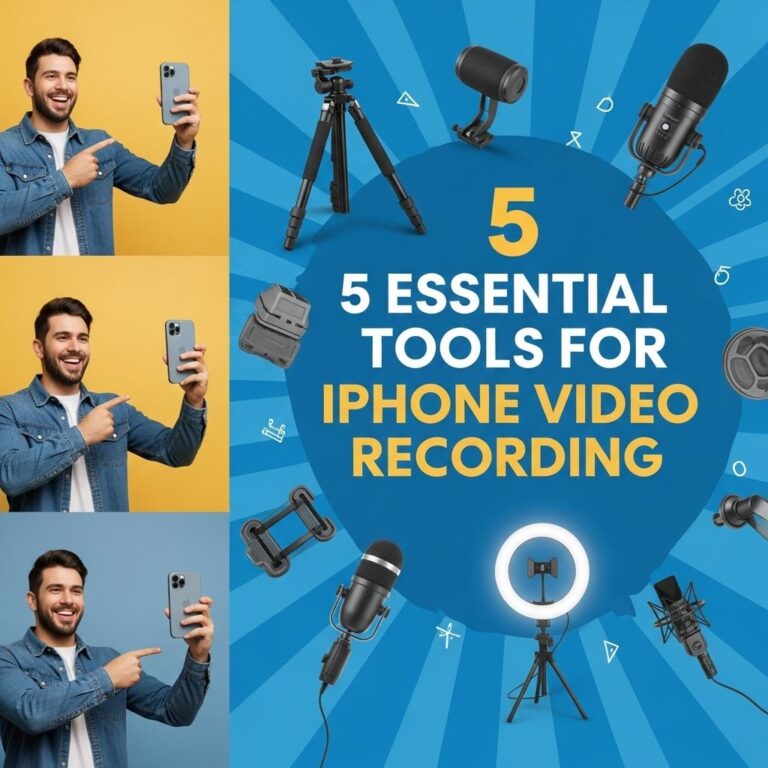
To enhance your video quality, consider investing in some essential accessories:
1. Tripod
A tripod stabilizes your iPhone for steady shots. Look for one that is portable and adjustable.
2. External Microphone
Audio quality is crucial for professional videos. An external microphone can significantly improve sound capture.
3. Lighting Equipment
Good lighting is key to high-quality video. Consider using:
- Softbox lights for even illumination.
- Ring lights for interviews and vlogs.
4. Gimbal Stabilizer
A gimbal stabilizer is useful for smooth, cinematic shots while moving. It can greatly enhance the production value of your videos.
Setting the Scene
The location where you shoot your video plays a significant role in the overall quality. Here are some tips for selecting and preparing your shooting environment:
1. Choose the Right Background
Make sure your background complements the subject. Look for:
- Simple backgrounds that do not distract from the subject.
- Interesting textures or colors that enhance the visual composition.
2. Control the Lighting
Natural light is often the best choice for shooting videos. However, if you’re indoors:
- Use curtains to diffuse harsh sunlight.
- Place lights at 45-degree angles to minimize shadows.
3. Eliminate Unwanted Noise
Find a quiet location to avoid background noise. If filming outside, consider windshields for your microphone.
Shooting Techniques
When it comes to capturing your footage, applying proper techniques is vital. Here are some tips to consider:
1. Frame Your Shots
Follow the rule of thirds by dividing your frame into three sections both horizontally and vertically. Position your subject at the intersections of these lines.
2. Use Manual Focus
Tap on your subject on the screen to ensure it is in sharp focus. You can also lock focus by holding your finger on the point until it beeps.
3. Experiment with Angles
Don’t hesitate to try different camera angles:
- Low angles can make subjects appear more powerful.
- High angles can create a sense of vulnerability.
4. Be Mindful of Movement
When moving the camera, do so slowly and deliberately. Quick movements can lead to disorientation for the viewer.
Editing Your Footage
Once your footage is captured, the next step is editing. Here are some popular editing apps you can use on your iPhone:
1. iMovie
A user-friendly option with templates and effects suitable for beginners.
2. LumaFusion
A more advanced editing app that offers multi-track editing and professional features.
3. Adobe Premiere Rush
Perfect for those familiar with Adobe products; it allows for cross-platform editing.
Creating a Compelling Story
While high-quality visuals are important, storytelling is what captivates an audience. Here’s how to craft a compelling narrative:
1. Develop a Script
Outline your video’s structure. Consider the following:
- Hook: Grab viewers’ attention within the first few seconds.
- Body: Deliver valuable content or storytelling.
- Call to Action: Encourage viewers to engage or learn more.
2. Incorporate B-Roll
B-Roll is supplementary footage that can enhance your story. For example:
- Cutaway shots that relate to your main content.
- Reaction shots to convey emotions.
3. Use Music and Sound Effects
Background music and sound effects can add depth to your video. Ensure you have the rights to any audio you use.
Sharing Your Videos
After editing, it’s time to share your masterpiece. Consider the following platforms:
1. YouTube
Ideal for long-form content. Optimize your titles and descriptions for search engines.
2. Instagram
Perfect for shorter clips and engaging visuals. Utilize stories and reels for maximum visibility.
3. TikTok
Great for creative short videos. Leverage trending sounds and hashtags to reach a wider audience.
Conclusion
Producing professional videos with your iPhone is entirely achievable with the right techniques and tools. Whether for personal projects or professional endeavors, mastering the art of mobile videography can open numerous opportunities. Start capturing your stories today, and don’t forget to continuously practice and experiment with your skills!
FAQ
How can I shoot professional videos with my iPhone?
To shoot professional videos with your iPhone, ensure good lighting, use a tripod, and consider external audio equipment for better sound quality.
What apps can I use to edit videos on my iPhone?
Popular video editing apps for iPhone include iMovie, LumaFusion, and Adobe Premiere Rush, which offer a range of features for professional editing.
What settings should I adjust for high-quality video on my iPhone?
Set your camera to record in 4K resolution at 60 fps, use the cinematic mode for depth effects, and adjust exposure and focus manually for better control.
How can I improve audio quality in my iPhone videos?
Use an external microphone, record in a quiet environment, and utilize apps that allow for audio adjustments to enhance the overall sound quality.
What accessories are essential for filming videos with an iPhone?
Essential accessories include a tripod, gimbal stabilizer, external microphone, and lighting equipment to enhance video quality.
Can I use my iPhone for live streaming?
Yes, you can use your iPhone for live streaming by utilizing apps like YouTube Live, Facebook Live, or Instagram Live, ensuring you have a stable internet connection.