Notion has emerged as one of the most versatile productivity tools available today. With its ability to combine note-taking, task management, project planning, and database functionalities into a single platform, Notion offers endless possibilities for customization and organization. In this article, we will explore five powerful ideas for optimizing your Notion workspace that will help you maximize efficiency and keep your projects on track.
Unlocking the full potential of your Notion workspace can dramatically enhance your productivity and creativity. Here are five powerful ideas that will help you transform your setup into an organized hub tailored to your needs. For instance, you might find inspiration in visual design elements, such as these helpful bag mockup visualization tips to boost your project presentations.
Table of Contents
1. Create a Personal Dashboard
A personal dashboard serves as the central hub for all your activities in Notion, giving you a bird’s-eye view of your tasks, projects, and important information. Here’s how to create an effective dashboard:
Elements of a Personal Dashboard
- Quick Links: Add links to your most frequently used pages or databases.
- Daily Tasks: Embed a task list to keep track of your to-dos.
- Calendar: Integrate a calendar view for important deadlines.
- Goals & Achievements: Include a section for tracking your personal or professional goals and milestones.
- Inspirational Quotes: Add a rotating quote section to motivate yourself.
Setting Up Your Dashboard
- Create a new page in Notion.
- Use the
/databasecommand to add linked databases or inline tables for your tasks and projects. - Use the
/embedcommand to incorporate elements like calendars or external links. - Customize with icons and backgrounds to make it visually appealing.
2. Develop a Knowledge Base
Having a centralized knowledge base in Notion can dramatically improve your ability to retrieve information quickly. This is especially useful for teams or individuals who manage a lot of data and resources.
How to Structure Your Knowledge Base
| Category | Description | Examples |
|---|---|---|
| Documentation | Internal and external documents relevant to your projects | API documentation, User manuals |
| Guidelines | Best practices and standard operating procedures | Brand guidelines, Onboarding processes |
| Research | Data and insights gathered from studies and reports | Market analysis, Competitor reviews |
| FAQs | A repository of frequently asked questions | Customer support queries, Team FAQs |
Best Practices
- Use tags for easy categorization and retrieval.
- Regularly update your knowledge base to ensure accuracy.
- Utilize the linking feature to connect related pages.
3. Implement a Project Management System
Effective project management is crucial for success in any field. Notion can be transformed into a robust project management system tailored to your unique workflows.
Project Management Features to Use
- Kanban Boards: Use Kanban boards for visual task management.
- Timelines: Create timelines for visualizing project schedules.
- Task Assignments: Assign tasks to team members with due dates.
- Status Indicators: Use status tags (e.g., Not Started, In Progress, Completed) for project tracking.
Setting Up Your Project Management System
Follow these steps to create your project management system in Notion:
- Create a new page for your project.
- Add a database for tasks, including properties for assignees, deadlines, and status.
- Include a Kanban board view for visual task tracking.
- Add a calendar view for deadline awareness.
4. Streamline Your Workflow with Templates
Templates are a powerful feature in Notion that can save you time and ensure consistency across your notes and projects. By creating or using existing templates, you can enhance your workflow significantly.
Types of Templates to Consider
- Meeting Notes: Template for documenting discussions, action items, and follow-ups.
- Project Briefs: Standardized format for outlining project goals, deliverables, and timelines.
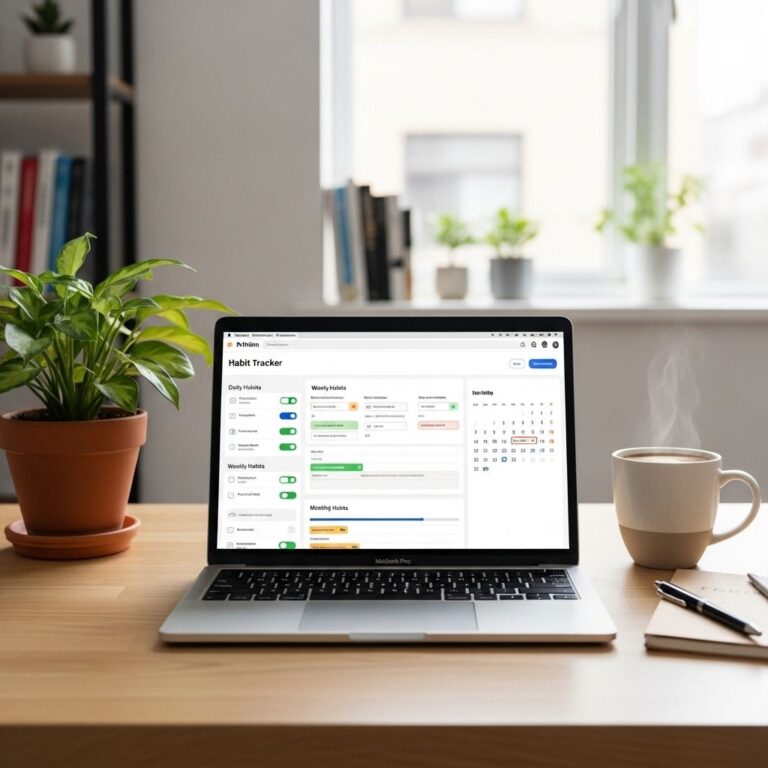
- Habit Trackers: Templates for monitoring daily habits and progress.
- Feedback Forms: A structured way to gather feedback from stakeholders.
How to Create a Template
- Create a new page and format it as desired.
- Click on the three-dot menu in the upper-right corner.
- Select ‘Template’ and save it for future use.
5. Foster Collaboration with Shared Workspaces
If you’re working with a team, creating shared workspaces in Notion can enhance collaboration and communication. This allows everyone to contribute and stay updated.
Features to Enhance Collaboration
- Commenting: Team members can leave comments on pages for feedback.
- Version History: Track changes and revert to previous versions if needed.
- Shared Databases: Work together on databases for project tracking and resource allocation.
Steps to Create a Shared Workspace
- Set up a page and invite team members.
- Configure permissions based on roles (view, comment, edit).
- Utilize shared databases effectively to keep everyone on the same page.
Conclusion
Maximizing your Notion workspace can transform how you manage tasks, collaborate with teams, and store information. By implementing the five powerful ideas discussed in this article, you can create a highly efficient and organized environment that caters to your unique needs. Whether you are an individual looking to enhance productivity or part of a larger team, harnessing the full potential of Notion will undoubtedly lead to improved workflows and successful outcomes.
FAQ
What are some creative ways to organize my Notion workspace?
You can create databases for tasks, notes, and projects, use tags for easy filtering, and set up linked pages for quick navigation.
How can I enhance collaboration in my Notion workspace?
Utilize shared pages, comment features, and assign tasks to team members to foster communication and accountability.
What templates can I use to boost productivity in Notion?
Consider using templates for daily planners, project management boards, or habit trackers to streamline your workflow.
How can I customize my Notion workspace for better aesthetics?
Use cover images, icons, and custom colors to create a visually appealing workspace that reflects your personal style.
Is it possible to automate tasks in Notion?
Yes, you can integrate Notion with tools like Zapier or Automate.io to streamline repetitive tasks and improve efficiency.