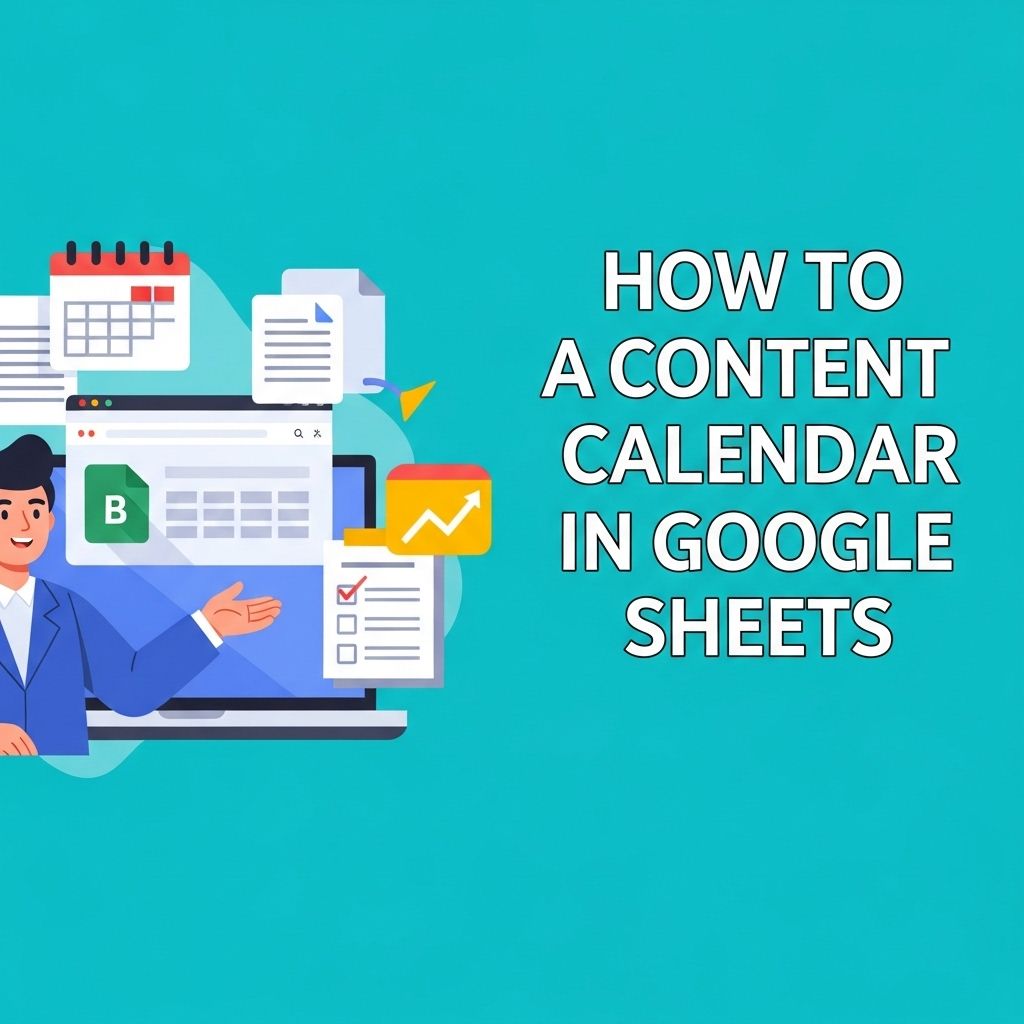
In the fast-paced world of digital marketing, maintaining a consistent content strategy is essential for success. A content calendar acts as a roadmap, guiding your content creation efforts and ensuring that your messaging aligns with your goals. Google Sheets offers a flexible and collaborative platform to create a content calendar that can be tailored to your specific needs. In this article, we will explore how to build an effective content calendar in Google Sheets, including best practices and tips to maximize its potential.
Creating a content calendar in Google Sheets is an effective way to organize and plan your beer-related content. By setting up a structured layout, you can easily track your posts, deadlines, and ideas all in one place. To inspire your creativity, check out these beer design templates that can enhance your visual content.
Table of Contents
Understanding the Basics of a Content Calendar
A content calendar is a scheduling tool that outlines when and where you’ll publish upcoming content. It can include everything from blog posts and emails to social media updates and video releases. Here are some key benefits of using a content calendar:
- Organization: Keeps your content strategy structured.
- Planning: Helps in strategic planning for campaigns and launches.
- Collaboration: Facilitates teamwork and communication among content creators.
- Accountability: Assigns responsibilities and deadlines.
- Analytics: Enables tracking of content performance over time.
Setting Up Your Google Sheets Content Calendar
To begin, open Google Sheets and create a new spreadsheet. You can choose to use a blank sheet or a template. Google Sheets also allows for easy sharing and collaboration with team members, making it a perfect tool for content planning. Follow these steps to set up your content calendar:
Step 1: Define Your Calendar Structure
Your content calendar’s structure will depend on your specific needs. Here’s a basic layout that you can customize:
| Date | Content Type | Title/Topic | Assigned To | Status | Notes |
|---|---|---|---|---|---|
| 01/01/2023 | Blog Post | New Year Resolutions | John Doe | Drafting | Focus on fitness and health. |
| 01/03/2023 | Social Media | Instagram Stories | Jane Smith | Scheduled | Highlight user-generated content. |
Step 2: Populate Your Calendar
Once you have defined your structure, start populating the calendar with upcoming content. Consider the following:
- Content Types: Include various formats such as blog posts, videos, podcasts, and social media updates.
- Publishing Dates: Assign dates based on your marketing schedule and campaign timelines.
- Responsible Parties: Clearly assign tasks to team members to ensure accountability.
- Status Updates: Use a status column to track progress (e.g., Drafting, Editing, Scheduled, Published).
Incorporating Additional Features
To enhance your content calendar, consider the following additional features:
Color Coding
Utilize color coding to differentiate between content types or the status of tasks. For example:
- Red: Not Started
- Orange: In Progress
- Green: Completed
Linking to Resources
You can add links to resources directly in the calendar for quick access. For example, link to:
- Draft documents in Google Docs
- Graphic files in Google Drive
- Websites or references used for research
Tracking Performance Metrics
Consider adding additional columns to track performance metrics for each piece of content, such as:
- Views
- Shares
- Comments
- Engagement Rate
Best Practices for Your Content Calendar
To make your content calendar a powerful tool, follow these best practices:
1. Regularly Update Your Calendar
Make it a habit to review and update your content calendar weekly. This ensures that it remains relevant and accurately reflects your ongoing projects.
2. Set Deadlines Early
Establish deadlines ahead of time to avoid last-minute rushes. This also allows time for revisions and approvals.
3. Keep It Flexible
While it’s important to adhere to your schedule, remain flexible to accommodate changes in strategy or priorities. Build in buffer times for unexpected tasks.
4. Involve Your Team
Encourage input from team members during the planning process. Collective brainstorming can yield fresh ideas and improve the quality of your content.
5. Review and Analyze
After publishing, take time to analyze the performance of your content. Use this data to inform future content strategies and make necessary adjustments.
Conclusion
Creating a content calendar in Google Sheets can streamline your content production process and improve collaboration among team members. By following the steps outlined in this article, you can develop a customized calendar that meets your unique needs. Remember to remain flexible and regularly review performance metrics to ensure your content strategy evolves with the changing digital landscape. With a well-organized content calendar, you can enhance your online presence and achieve your marketing goals effectively.
FAQ
What is a content calendar?
A content calendar is a tool that helps you plan, organize, and schedule your content marketing strategy over a specific period.
Why should I use Google Sheets for my content calendar?
Google Sheets is a versatile and accessible platform that allows for easy collaboration, real-time updates, and formatting options, making it ideal for managing a content calendar.
How do I set up a content calendar in Google Sheets?
To set up a content calendar in Google Sheets, create a new spreadsheet, label columns for dates, content types, platforms, and status, and then fill in your planned content.
Can I share my Google Sheets content calendar with my team?
Yes, you can easily share your Google Sheets content calendar with your team by using the ‘Share’ feature, allowing team members to view or edit the document.
What are some tips for maintaining an effective content calendar?
Regularly update your calendar, include deadlines, track performance metrics, and adjust your strategy based on insights to maintain an effective content calendar.
Are there any templates available for content calendars in Google Sheets?
Yes, there are numerous free and paid templates available online that you can use as a starting point for creating your content calendar in Google Sheets.