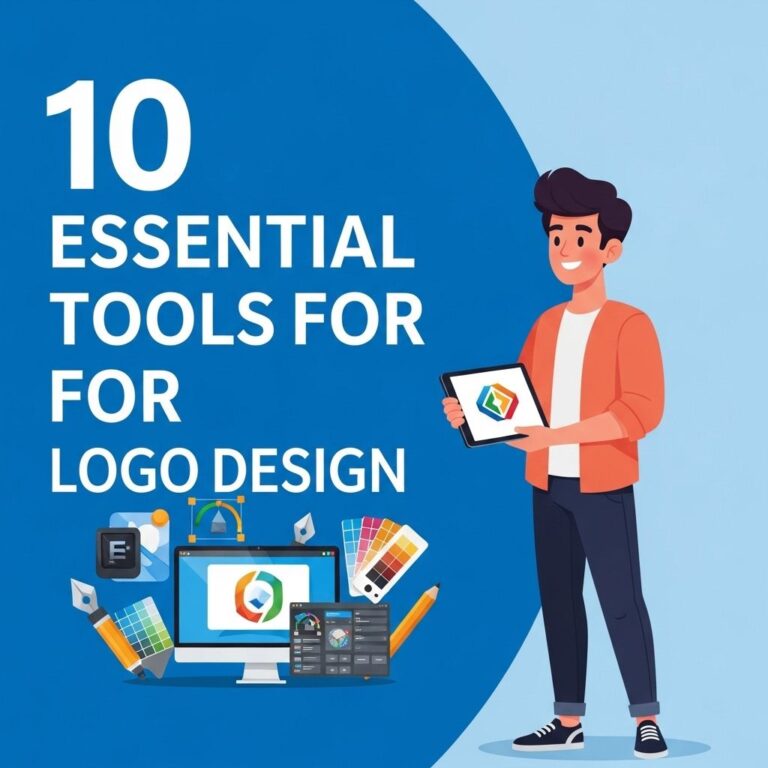
In today’s digital age, image editing has become an essential skill for professionals and hobbyists alike. Whether you’re a graphic designer, photographer, or simply someone who enjoys enhancing their pictures, having the right tools can make all the difference. This article explores ten must-have tools for image editing that cater to various skill levels and needs, ensuring that you can achieve stunning results with your visuals.
In the world of beer photography, having the right tools for image editing is crucial to capturing the essence of your craft. From color correction to retouching, these 10 essential tools will help you elevate your images, making them stand out. For those seeking great examples, you can find high-quality beer images to inspire your editing process.
Table of Contents
Understanding Image Editing Tools
Image editing tools come in various forms, from simple apps designed for quick touch-ups to comprehensive software that offers advanced features for detailed work. Here are some key factors to consider when choosing an image editing tool:
- Ease of Use: Ensure the tool is user-friendly, especially if you’re a beginner.
- Features: Look for specific functionalities that meet your editing needs.
- Compatibility: Check if the tool works on your operating system (Windows, macOS, etc.).
- Price: Some tools are free, while others require a purchase or subscription.
Top 10 Image Editing Tools
Below is a list of ten essential image editing tools that every editor should consider using:
1. Adobe Photoshop
Adobe Photoshop is the industry standard for professional image editing. It offers a plethora of tools for retouching, compositing, and creating stunning graphics.
Key Features:
- Layer-based editing
- Extensive brush and filter options
- Advanced color correction
- Support for various file formats
2. GIMP
GIMP (GNU Image Manipulation Program) is a powerful open-source alternative to Photoshop. It’s great for both beginners and experienced users who need advanced editing capabilities.
Key Features:
- Customizable interface
- Support for various plugins
- Advanced retouching tools
3. Canva
Canva is an online design tool that allows users to create graphics, social media posts, and presentations quickly and easily. Its drag-and-drop interface is intuitive and user-friendly.
Key Features:
- Pre-designed templates
- Collaboration tools
- Extensive library of stock images and elements
4. Lightroom
Adobe Lightroom is specifically designed for photographers. It focuses on photo management and editing, providing tools to enhance images while keeping the workflow streamlined.
Key Features:
- Non-destructive editing
- Powerful organizational tools
- Advanced color grading options
5. CorelDRAW
CorelDRAW is a vector graphics editor that is ideal for designing logos, illustrations, and complex layouts. It offers precise control over graphics, making it a favorite among designers.
Key Features:
- Vector illustration tools
- Color management tools
- Collaboration features
6. Affinity Photo
Affinity Photo is an affordable alternative to Photoshop, packed with professional-grade features for photo editing and retouching.
Key Features:
- Layer support and effects
- Real-time editing
- RAW processing capabilities
7. Pixlr
Pixlr offers a convenient online platform for quick image editing. It’s perfect for those who need to make fast edits without the hassle of installing software.
Key Features:
- Web-based application
- Filters and effects
- Simple interface
8. Snapseed
Snapseed is a mobile app developed by Google that provides an impressive range of editing tools that fit in your pocket. It’s perfect for on-the-go editing.
Key Features:
- Advanced editing tools
- User-friendly interface
- Wide range of filters
9. Fotor
Fotor is an online photo editor that offers comprehensive editing capabilities, along with graphic design features. It’s suitable for beginners and those with moderate experience.
Key Features:
- Collage maker
- One-tap enhancement
- Text and stickers addition
10. Paint.NET
Paint.NET is a free raster graphics editor for Windows, known for its simplicity and effectiveness for basic image editing tasks.
Key Features:
- User-friendly interface
- Support for layers
- Active community and plugin options
Choosing the Right Tool for Your Needs
When selecting an image editing tool, it’s crucial to assess your specific needs. Here are a few questions you may want to think about:
- What is your level of expertise? Beginners might benefit more from tools like Canva or Fotor, while professionals might prefer Adobe Photoshop or Affinity Photo.
- What types of projects will you be working on? If you’re focusing on photography, Lightroom or Snapseed could be more valuable.
- Do you prefer working online or offline? Web-based tools like Pixlr or Canva are perfect for cloud-based productivity, while desktop applications like GIMP or CorelDRAW offer powerful offline capabilities.
Conclusion
With a diverse range of image editing tools available on the market, finding the right one for your needs can enhance your creative workflow and boost your productivity. Whether you’re looking for professional-grade software or a quick mobile app, the tools mentioned in this article are essential for anyone interested in image editing. Explore these options and find the ones that resonate with your style and workflow.
FAQ
What are the top tools for image editing?
Some of the top tools for image editing include Adobe Photoshop, GIMP, Canva, Lightroom, Pixlr, and Affinity Photo.
Is Adobe Photoshop the best image editing tool?
Adobe Photoshop is widely regarded as one of the best image editing tools due to its extensive features and capabilities, making it suitable for professionals.
Can I use free tools for image editing?
Yes, there are several free tools available for image editing, such as GIMP, Canva, and Pixlr, which offer robust features without any cost.
What features should I look for in image editing software?
Look for features like layers, filters, color correction, cropping, and user-friendly interfaces when choosing image editing software.
Are there mobile apps for image editing?
Yes, there are many mobile apps for image editing, including Snapseed, Adobe Lightroom Mobile, and PicsArt, which allow you to edit images on the go.
What is the difference between raster and vector image editing tools?
Raster image editing tools work with pixel-based images, while vector image editing tools manipulate shapes and lines, allowing for scalable graphics without loss of quality.